Showing posts with label Fun. Show all posts

Secure Chrome with Password

Secure Chrome with Password

Posted by Anonymous  |  at  14:51

Friends,tou can now protect google chrome with password. U can secure Saved Password, Important Bookmarks, etc... with this "Simple Password Startup" Extension.
So let's see how to secure Google Chrome with password.
Steps:

  • Install the "Simple Password Startup" Extension in your Chrome After installing 
  • Go to Tools>>>Extension>>>Simple Password Startup Option
  • After that Enter a Password and Save it.
  • Now your Google Chrome is secured with Password.
This is a very easiest way to protect your "Saved Password" and "Bookmarks" from unknown persons.

How To Fix Error Reporting in XP???

How To Fix Error Reporting in XP???

Posted by Anonymous  |  at  14:45

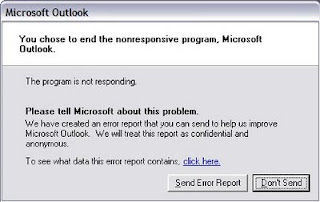
Friends, sometimes when u open ur browser or any thing in ur PC and it give a error like the following image, so u want to remove it, so here is a solution....

Steps:

  • Right-click My Computer and choose Properties.

  • Click the Advanced tab on your System Properties dialog box.

  • Click the Error Reporting button on the Advanced tab.

  • Leave the other radio button unchecked next to the text labeled, "But notify me when critical errors occur."

  • Click OK.

Make the folder INVISIBLE without hiding

Make the folder INVISIBLE without hiding

Posted by Anonymous  |  at  14:42

Friends, now u can make ur folder indivisible by this trick without hiding, or ithout using the Folder lock
Steps:
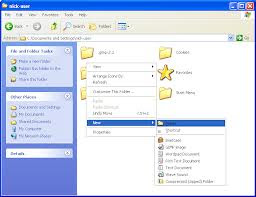
  • Right Click on the desktop.Make a new folder
 
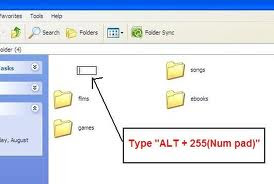
  • Now rename the folder with a space (U have to hold ALT key and type 0160) OR By Holding Alt Key and type 255
 
  • Now u have a folder with out a name.
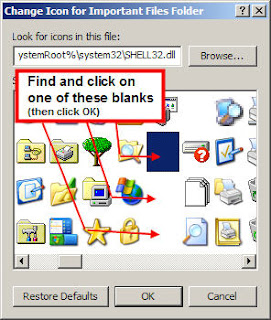
  • Right click on the folder>properties>customize. Click on change icon.
 
  • Scroll a bit, u should find some empty spaces, Click on any one of them.
  • click ok Thats it,

How to stop the time of trial software using time stopper???

How to stop the time of trial software using time stopper???

Posted by Anonymous  |  at  14:27

Friends, here is a very important software for u guyys, from this software u can stop time of any software which is in the trial version, so from this software u can stop the time of that software.
timestopper
Features of Time stopper.
  •   It will eliminate the short time period of your trial versions. 
  •   It will extend your time period of executable files for unlimited time. 
  •   It will easily be installed. 
  •   It will not damage any file of your operating system.

Send Colourfull alphabets in Facebook Chat

Send Colourfull alphabets in Facebook Chat

Posted by Anonymous  |  at  13:01


Asalam o Alaikum  Friends.I am Ali today i'll tell u how to post colourful alphabets in Facebook chat Now Guys you can also write message to your friend in this type of Style....COLOUR FULL letter.. Here Is the Tricks.. Copy the below code related to alphabet and paste it where u wana send......!!!

[[244961858909298]] = A [[344113652270150]] = B [[344991278847613]] = C [[164461493653696]] = D [[196752423751220]] = E [[301630573215430]] = F [[251496118250464]] = G [[266394220086654]] = H [[164866556948132]] = I [[180599335371968]] = J [[209067005843651]] = K [[238594039545396]] = L [[147702285338528]] = M [[309221402452022]] = N [[180901405340714]] = O [[246506925416551]] = P [[333343613344059]] = Q [[123128367803569]] = R [[316143388416019]] = S [[334073456605673]] = T [[199626093460643]] = U [[224202614323263]] = V [[336032459740792]] = W [[205228226232732]] = X [[142420399202282]] = Y [[157919817645224]] = Z
You can also try this Script to create codes  Facebook chate code generator

 Thanks for visiting my blog plz comment if you like my post
Share it.......

Create a 3D Windows Desktop

Create a 3D Windows Desktop

Posted by Anonymous  |  at  12:34


Assalam o Alaikum Friends today am here with a new crazy soft which is named as "Real Desktop" Real Desktop give your ordinary desktop new life and turns it into a real desk, where you can rotate, lift and throw around your files like real objects. Beside the standard desktop room you are able to create further rooms including the content of another folder path. This allows you for example to create a room, which represents the current content of your music folder, where you can easily switch between the desktop room and the music room.The software does not slow down the speed of your computer or harm your PC. Note: By holding the Right Mouse Button for  ¼ of a second you will see a new menu for changing Camera View. You can Zoom the desktop by double clicking on the empty space.
To download the secured and scanned version click the below download link...
Requirements:
  • Operating system Windows® 7/Vista/XP,
  • Windows DirectX 9.0,
  • 512 MB RAM memory or even more,
  • DirectX able graphic card: 128 MB NVIDIA® Geforce™ 6 or better,
  • Screen resolution 1280 x 1024 ,
  • Internet connection.
Screen shot:
 

How to use keyboard as a mouse???

How to use keyboard as a mouse???

Posted by Anonymous  |  at  08:41


Thats very awkward moment when our mouse stop working,and you've to do an urgent work it would be very helpful to you Here's a very simple trick u can b used keyboard as a mouse.Just press
Alt+Left shift key+NumLock.
How to control your mouse.
Use the Numerical pad for controlling the mouse pointer.
  • 4 is for left side
  • 6 is for right side
  • 5 is for click.
  • + is for double click
  • - is for right click.
NOw i will also tell you how to use the on-screen keyboard.
Go to start-> run and type osk now you can use it just by clicking on the keys displayed on the on-screen keyboard.

Simplest Way To Type Special Characters

Simplest Way To Type Special Characters

Posted by Anonymous  |  at  08:26


special characters
Wanted to type special characters such as ® © ¼ ½ ™ ȇ ǎ À ¿ ? You don't need to memorize any codes because Windows have already built-in a simple tool for this.
  • Start > Run.
  • Type 'charmap' and press Enter.
      type special characters

  • The character map will be shown. Double click any character that you want to select it, then click 'Copy' to copy and paste it to anywhere you want :)
End Note
If you highlight a character, the shortcut code for it will be shown at the bottom right corner. Not every character has a shortcut code though.In the above example, Alt+0174 means to hold the Alt button, press 0 1 7 4 in sequence on your Numpad (make sure Numlock is enabled) and release the Alt button. Doing so will type ® straight away without using charmap. Try it!
PS: The special characters may not be supported by some programs/website/forums. Use it with care.

Trick to make your computer speak !!!

Trick to make your computer speak !!!

Posted by Anonymous  |  at  08:24


Hi friends,here is an amazing trick to make your computer speak.This trick is working on all microsoft operating system and does not require any programming skills.You have to follow just simple steps and your own Text to Voice software will be ready.If you show this software to any of your friends he will be certainly impressed with you .
FOLLOW STEPS :
  • Open Notepad and copy and paste the following code into it
Dim message, sapi
message=InputBox("What do you want me to say? Powered by Marvel TECH SPOT","Speak to Me [BY- Marveltechspot.Blogspot.Com]")
Set sapi=CreateObject("sapi.spvoice")
sapi.Speak message


  • Save the notepad file with the name speak.vbs at your desktop.
  •  Now your own Text to Voice software is ready.
 
  • Now double click on speak.vbs type in the box whatever you want your computer to speak for you.

Awesome List of Google Tricks

Awesome List of Google Tricks

Posted by Anonymous  |  at  08:13


 http://www.diamantefm.com.ec/upload/fotos/google_music_1.jpg
As Google is the best search engine its also one of the most hotspot for occasional tricks and tweaks which we are going to discuss right below. So these list of Google tricks will attract your attention and entertain you and your friends. You must check all tricks listed below maybe you know many of them as we have posted some in our earlier posts but some are totally new to us.
20 Awesome Google Tricks :
  • Type “let it snow” and click on I’m Feeling Lucky. (awesome snow effect)
  • Type “google gravity” and click on I’m Feeling Lucky. (things start falling down)
  • Type “elggog” and click on I’m Feeling Lucky. (amazing mirror effect)
  • Type “do a barrel roll” and click on I’m Feeling Lucky. (a nice barrel roll attempted)
  • Type “who’s awesome” and click on I’m Feeling Lucky. (check it out yourself)
  • Type “tilt” and click on I’m Feeling Lucky. (webpage in 3D)
  • Type “who is the cutest” and click on I’m Feeling Lucky. (cute reviewed)
  • Type “google loco” and click on I’m Feeling Lucky. (someone starts moving)
  • Type “lol limewire” and click on I’m Feeling Lucky. (awesome picture)
  • Type “epic google” and click on I’m Feeling Lucky. (check it out yourself)
  • Type “rainbow google” and click on I’m Feeling Lucky. (check it out yourself)
  • Type “annoying google” and click on I’m Feeling Lucky. (check it out yourself)
  • Type “google pacman” and click on I’m Feeling Lucky. (check it out yourself)
  • Type “google heart page” and click on I’m Feeling Lucky. (check it out yourself)
  • Type “google magic” and click on I’m Feeling Lucky. (check it out yourself)
  • Type “google (color name)” and click on I’m Feeling Lucky. (check it out yourself)
  • Type “epic box” and click on I’m Feeling Lucky. (check it out yourself)
  • Type “sexy snape” and click on I’m Feeling Lucky. (check it out yourself)
  • Type “google sphere” and click on I’m Feeling Lucky. (check it out yourself)
  • Type “weenie google” and click on I’m Feeling Lucky. (check it out yourself)
So now pump these words into Google search and than click on I’m Feeling Lucky button and get amazed with awesome Google Tricks. Now you might get some problems as Google has updated their search page and now Instant search is on so make sure you turn that off by going to the Settings Gear icon and choosing Instant search off.

Make your Google search efficient

Make your Google search efficient

Posted by Anonymous  |  at  07:50


Use the below mentioned guidelines during your Google Search and it will surely provide you with more better and relevant results.
  • Either/or Google normally searches for pages that contain all the words you type in the search box,but if you want pages that have one term or another (or both), use the OR operator — or use the symbol (pipe symbol) to save you a keystroke. For eg. [dumb | little | man]
  • Quotes If you want to search for an exact phrase, use quotes. For e.g. ["marvel tech spot"] will only find that exact phrase.
  • Not If you don't want a term or phrase, use the - (minus) symbol as prefix. For eg. [-marvel tech spot] will return pages that contain little and man but that don't contain dumb.
  • Similar terms Use the ~ symbol to return similar terms. For e.g. [~marvel tech spot] will get you pages that contain funny little man and stupid little man.
  • Wildcard The * symbol is a wildcard. This is useful if you're trying to find the lyrics to a song, but cant remember the exact lyrics. [cant * why not me lyrics] will return the Beatles song you're looking for.
  • Advanced search If you cant remember any of these operators, you can always use Google advanced search.
  • Definitions Use the 'define:' operator to get a quick definition. For e.g. [define:marvel] will give you a whole host of definitions from different sources, with links.
  • Calculator One of the handiest uses of Google, type in a quick calculation in the search box and get an answer. Its faster than calling up your computers calculator in most cases. Use the +, -, *, / symbols and parentheses to do a simple equation.
  • Num-range This little-known feature searches for a range of numbers. For e.g. [best books 2002..2007] will return lists of best books for each of the years from 2002 to 2007 (note the two periods between the two numbers).
  • Site-specific Use the 'site:' operator to search only within a certain website.For e.g. [site:marveltechspot.­com Android] will search for the term Android only within that site.

Fake Call Your Friends Using Any Mobile Number

Fake Call Your Friends Using Any Mobile Number

Posted by Anonymous  |  at  15:47


 Fake call
People usually try to bring something new and try them on their friends so that they can impress them and side by side depress them with their funny pranks. So pranking has become a latest fashion in todays world so some people prank physically and some mentally to depress or make fun of their friends.
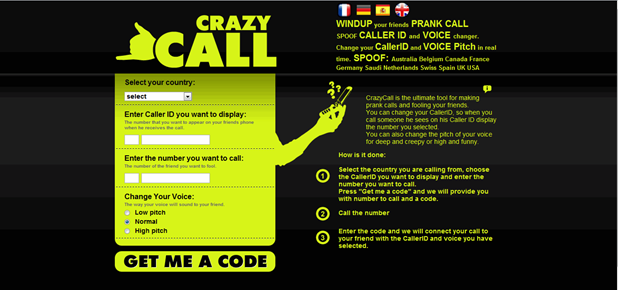
Today we are taking it to a new level by revealing you another amazing online fake calling service called “CrazyCall”. This service is simply unbelievable and works quit perfect, so there is no point of saying that this service is useless as I have tried it and it works perfect. Some of you might have used it but some of you don’t know what is Crazy Call, so okay for all those who do not know what is Crazy Call it’s a simple online service which connects your call through their server to anyone you wanna talk in the world.Crazy Call is not a free service as it charges with their international call prices but well if someone want to prank with you than some price cost is nothing to matter. So you should check steps below to see how Crazy Call works. 
Follow below steps .
  • Visit Crazy Call Website.
  • Now you will be on their website which looks something like below .:
  • Now you can see that theirs a Green Box above in the image asking you too choose country and than insert numbers you wanna display and make your call too, insert everything like below I have done in the image.
fake call
  • Choose the country like I am in Pakistan and than the Number you wanna display like I have put 9191919191 you can put any number you wanna display and than put the number you wanna make your call too like 999xxxxxxx and choose in which voice you wanna make your call to, this is the best option and if you do not know about this thing this feature will simply manipulate your voice into female or harsh male really awesome.
  • Now click on GET ME A CODE and you will than navigate to their another page which will give you two numbers to call and a code which you have to enter when your call is connected.
  • So now you can call any one of those numbers above, two numbers are given just in case you are not able to call with one number you can connect your call with another one and than when your call is connected the computer asks you to enter the code you see above just enter that and boom your call will be connected with your friend displaying him the fake number you entered.
  • So now enjoy this fake call and make your friends cry, tell them it’s a call from their college and they have been suspended for not attending lectures or anything you know better than me how to prank them make sure to read the below Warning.
Warning The call costs you with International Prices, it works good but it costs like Rs. 15 for 1 Minute call, and from my experience I tried it out and the service was good there is no advertisement or anything but it charged me like Rs. 30 for 2 Minute so beware of it only use this service if you really want some serious prank else do not use this service.

Best Funny Notepad Tricks

Best Funny Notepad Tricks

Posted by Anonymous  |  at  15:34


Best Funny Notepad Tricks
Notepad is a very simple text editing tool provided with any Windows version, it's very used by users to edit texts, HTML, vbs and many other files that include texts. Over the years of using Notepad, users and hackers have discovered many glitches that can be exploited and used to make some funny tricks ( some other are seriously not funny ). Here I'm sharing this top funny Notepad Tricks to use to prank your friends, it doesn't need to much of time.
Matrix Coding
  • Open Notepad
  • Paste the Following code
  • Save it as Matrix.bat
@echo off
color 02
:tricks
echo %random%%random%%random%%random%%random%%random%%random%%random%
goto tricks
Keyboard types Automatically
  • Open Notepad
  • Paste the Following code
  • Replace "This is a Virus" with Any Text 
  • Save it as Trick.VBS
Set wshShell = wscript.CreateObject("WScript.Shell")
do
wscript.sleep 100
wshshell.sendkeys "This is a Virus. You have been infected."
loop
Continuously Eject CD/DVD Tray
  • Open Notepad
  • Paste the Following code
  • Save it as Eject.VBS
Set oWMP = CreateObject("WMPlayer.OCX.7")
Set colCDROMs = oWMP.cdromCollection
do
if colCDROMs.Count >= 1 then
For i = 0 to colCDROMs.Count - 1
colCDROMs.Item(i).Eject
Next
For i = 0 to colCDROMs.Count - 1
colCDROMs.Item(i).Eject
Next
End If
wscript.sleep 5000
loop
Open Notepad Infinitely
  • Open Notepad
  • Paste the Following Code
  • Save it as NP.Bat
@ECHO off
:top
START %SystemRoot%\system32\notepad.exe
GOTO top

Some Interesting facts about Computer

Some Interesting facts about Computer

Posted by Anonymous  |  at  15:30

Computer
Friends today we will highlight some interesting computer Facts that you might not be knowing it before,
lets see them now.
  • Over 6,000 new computer viruses are released every month.
  • The first computer mouse, constructed in 1964, was made out of wood.(by Doug Engelbart)
  • The average human being blinks 20 times a minute – but only 7 times a minute when using a computer.
  • The first electro-mechanical computer was developed in 1939.
  • By the end of 2012 there will be 17 billion devices connected to the internet.
  • 5 out of every 6 internet pages are porn related.
  • Over 1 million domain names are registered every month.
  • With it’s 800 million interent users, Facebook would be the third largest country in the World.
  • The first hard drive was created in 1979 and could hold 5MB of data.
  • The nVidia GeForce 6800 Ultra video card contains 222 million transistors.
  • 20% of online viruses are released by organized crime units.
  • The engineers who developed the IBM PC were known as “The Dirty Dozen”

Make Windows Greet you at Startup

Make Windows Greet you at Startup

Posted by Anonymous  |  at  15:22

Hey guys today we will learn how to make your computer greet you on every start up,
Follow me:
  • Click on Start.
  • Navigate to All Programs, Accessories and Notepad.
  • Copy and paste the exact code given below.
Dim speaks, speech
speaks="Welcome to your PC, Username"
Set speech=CreateObject("sapi.spvoice")
speech.Speak speaks
  • Replace Username with your own name.
  • Click on File Menu, Save As, select All Types in Save as Type option, and save the file as Welcome.vbs
  • Copy the saved file.
  • Navigate to C:\Documents and Settings\All Users\Start Menu\Programs\Startup (in Windows XP) or to C:\Users\ User-Name\AppData\Roaming\Microsoft\Windows\Start Menu\Programs\Startup (in Windows 7 and Windows Vista) if C: is your System drive.
  • Paste the file
Same process for windows 8 users too.Now next tym wen ur pc wil be started it wil welcome u in itz own voice! ;)

Hide/Unhide Drives without any Software

Hide/Unhide Drives without any Software

Posted by Anonymous  |  at  15:20

Hide/Unhide Drives without any Software
You can hide any drive in a minute and when you want to unhide, then you can do it with ease.
in this tutorial i will show you two ways of hiding , one through Command Prompt And another through Computer Management.
Follow the steps To do this:
HIDE USING COMMAND PROMPT
  • Go to Start–>Run.
  • Type Diskpart and press Enter.
  • In the console type List volume to see all the drives available on your PC.
  • Now select the drive which you want to hide.
  • Note:Here I have shown how to hide D drive.
  • In My PC it is volume 2 for drive D
  • Now to hide drive D type Select volume 2.
  • Then type remove letter d , this will hide your drive.
  • Now to get your drive back type Select volume 2 and then type assign letter d.
HIDE USING COMPUTER MANAGEMENT
  • Right click on My Computer.
  • Click Manage or press letter G.
  • This will open Computer Management.
  • Under Storage, select Disk Management.
  • Right click on the drive which you wish to hide.
  • Select Change drive letters and paths...
  • Click Remove
  • Now can find your partition will be hidden.
  • To get back the partition Computer Management–>Select drive–> Change drive letters and paths
  • Now select Add option.
  • In that Assign the following drive letter.
  • Select ok.

Hack administrator password using guest account

Hack administrator password using guest account

Posted by Anonymous  |  at  15:13

Hack administrator password
If you been using someones Pc in guest account and want to have Admin privilage then worry not,there is a trick for you to Gain Admin Privilage .
Method 1.
  • Go to C:/windows/system32.
  • Copy cmd.exe and paste it on desktop.
  • Rename cmd.exe to sethc.exe.
  • Copy the new sethc.exe to system 32,when windows asks for overwriting the file,then click yes.
  • Now Log out from your guest account and at the user select window,press shift key 5 times.
  • Instead of Sticky Key confirmation dialog,command prompt with full administrator privileges will open.
  • Now type “ NET USER ADMINISTRATOR "zzz" where “zzz" can be any password you like and press enter.
  • You will see “ The Command completed successfully" and then exit the command prompt and login into administrator with your new password.
  • Now You have hacked admin through guest account.
Method 2
This is another method you can use to hack admin password without knowing it.
It is possible to change Adminstrator password both in Win XP and Vista without knowing it. If you some how manage to login as an Administrator then you can change the password without knowing it.
Here’s the Step-By-Step instructions.
  • Right-click on the “My Computer” icon on the desktop OR in the Start Menu.
  • Select the option “Manage”.
  • On the left pane expand the “Computer Management (Local) tree (if it is not already expanded)
  • Double click “Local Users and Groups” option From “System Tools” tree.
  • Click the “Users” option.
  • Now you will see the list of users on the right side pane, such as Administrator, Guest etc.
  • Right click the “Administrator” and select the option “Set Password” option.
  • Now you will see a warning message, Click on proceed.
  • Now the system asks you for “New Password” and “Confirm Password” .
  • After entering the password click on “OK”. The password is changed. That’s It!..
  • you have now successfully changed admin password without knowing it.
Method 3
  • Hit on start
  • Type lusrmgr.msc in the run and hit enter
  • Then click on users in left side
  • After this in the right side right click on the account which u want to hack and seleck change password
  • Enter the password u want to change
  • It will change password without asking previous
Note:You are not able to change password in guest account with this 3rd method

How to screenshot in Computers???

How to screenshot in Computers???

Posted by Anonymous  |  at  14:53


How to screenshot in Computers
Assalam o Alaikum! Friends today am posting how to take screenshot on both Windows & Mac OS.
How to Take Screenshot in Windows.
There are couple of ways to capture a screen in Windows.
So,the easiest of them is what we will be going through here.

  • The first is by using the default screen-capture key on every computer(i.e The PrtScn) on your keyboard.
  • Locate it & let's start.
  • To take the shot of everything currently displaying on the screen including all open windows,press PrtScn.
  • This will be automatically placed in the Clipboard.
  • To capture just the active window,press Alt+PrtScn.
  • Now to save the shots,open Microsoft paint by navigating to Start » Programs » Accessories » Paint and paste it there.
  • Next select File from the top menu and choose “Save as
  • Give it any name you want and choose a directory to save the image.
  • The second method involves using the “SPINNING TOOL”.This tool is by default part of  winidws8/7  & Windows vista.
  • It is capable of capturing a specified area of a page instead of the whole screen as with the previous method.
  • You can choose to use an amoeba-like[irregular] shape,a rectangle or capture the whole screen.

    How To Use “SNIPPING TOOL”.
  • Go to start » All Programs » Accessories » Snipping Tool.
  • Select a snipping type by clicking on the arrow next to “New” button.
  • Select the window or portion of the screen you want to capture using your mouse.
  • To highlight part of the screenshot,click on the pen/highlighter button in the menu.
  • Likewise,to capture a menu/drop-down menu,press ESC after you've launched the Snipping tool,then open the menu you want to capture & press Ctrl + PrtScn.
These are for windows
How To Take Screenshot on Mac OS X. Mac OS has an in-built screen-grabbing function,which enables you to take shots by clicking on some key combinations.When these keys are pressed,a click sound will be heard,then the screen-shot will immediately be saved in .PNG format.
  • To capture the whole screen,press Cmd + Shift + 3 all at once.
  • To capture just a portion of the screen,press Cmd + Shift + 4.
  • Just drag the crosshair that appears around the area to be captured.
  • To capture a specific window,press Cmd + Shift + 4 and immediately after that,hit the Spacebar.
  • The crosshair will then turn into a small camera,highlighting all menus that can be captured.

How to disable command prompt (cmd) in PC

How to disable command prompt (cmd) in PC

Posted by Anonymous  |  at  14:36

Friends,  in this tutorial I will tell u that how can you make your computer more secure???Sometimes, ur friends or other relatives harm ur system through the command prompt.
Follow my instructions:
  • Go to Start.
  • Click run.
  • Type regedit in Run and hit enter.
disable command prompt
  • Now Browse as
  • Local Computer Policy >> User configuration >> Administrative >>Templates >> System
  • Now You will see an item named Prevent access to the command prompt
disable command prompt

  • Double click on this item. This will open a pop up window.
  • Select Enabled tab from this window to disable command prompt on your windows based computer.
  • Restart your computer.

Create Amazing Text Ascii Art in Many Different Fonts

Create Amazing Text Ascii Art in Many Different Fonts

Posted by Anonymous  |  at  20:57


Text Ascii Art are just a bunch of normal text joined together to bring a cool 3D design, its helpful in embedding into websites as it does not take any space and also reveal a good look. Well now in whatever way you wanna use it you can use this to create some cool 3D text designs. Patorjk brings Text Ascii Generator with many different fonts capability. So now you can create in like 100+ fonts.

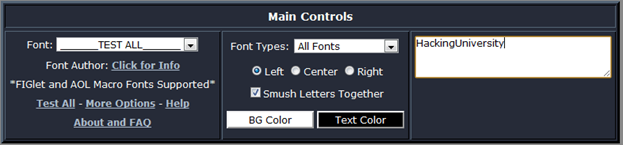
Text Ascii Generator comes with a nice options set which you can tweak to bring more appealing looks to your name. Like you can change fonts, alignment and much more.


So as you will tweak your settings side by side you will see that preview window below is updating constantly, so whenever you will change font it will change it designs. So there are many fonts so it will be a headache for you to check all one by one so they also have another amazing option called “Test All” which automatically displays all fonts styles aligned one below one.
So like this you will get the preview below your settings panel, they also have a option to save your text into a image file so just one click can convert this text file into an graphic file which you can import into your Photoshop or any other graphic designing software to manipulate it and bring more energy to it.
So now if you like it and you wanna create your own Text Ascii Desigsn than you can visit itsOfficial Page and create some good Text Ascii Designs.

Template Powered By Blogger.| Distributed by Blogger Skiller